| |
Kolega me je opozoril, da moram imeti PS nastavljen v mode 8 bitni, on da si je nekaj spremenil na 16 in vse "zmrdal"..Čemu to služi potem?
spremenil: NikMan (4.5.2011 ob 10.12.07)
|
| |
| |
Mode nastaviš lahko tako, da klikneš zgoraj na Image, Mode in nato izbereš ...
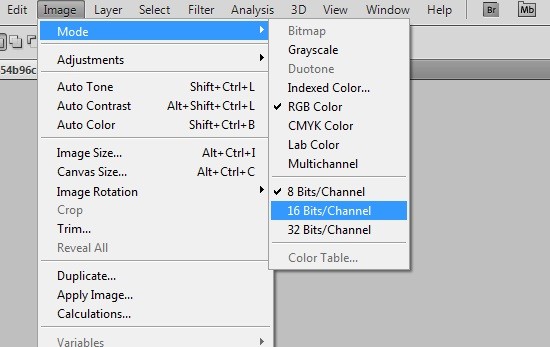
8 bitov/kanal omogoča 265 (VGA) barv na kanal (RGB 24bit)
16 bitov/kanal omogoča 32.769 barv na kanal (RGB 48bit)
spremenil: NikMan (4.5.2011 ob 11.32.45)
|
| |
| |
Še pojasnilo v angleškem jeziku:
A. Bitmap mode
B. Grayscale mode
C. Indexed-color mode
D. RGB mode
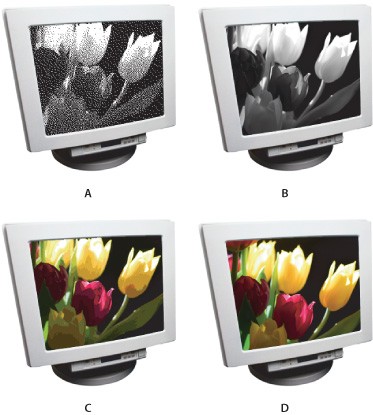
Bitmap mode
Uses one of two color values (black or white) to represent the pixels in an image. Images in bitmap mode are called 1‑bit images because they have a bit depth of 1.
Grayscale mode
Uses up to 256 shades of gray. Grayscale images are 8‑bit images. Every pixel in a grayscale image has a brightness value ranging from 0 (black) to 255 (white). Grayscale values can also be measured as percentages of black ink coverage (0% is equal to white, 100% to black).
Indexed Color mode
Uses up to 256 colors. Indexed-color images are 8‑bit images. When converting into indexed color, Photoshop Elements builds a color lookup table (CLUT), which stores and indexes the colors in the image. If a color in the original image does not appear in the table, the program chooses the closest one or simulates the color using available colors. By limiting the panel of colors, indexed color can reduce file size while maintaining visual quality—for example, for a web page. Limited editing is available in this mode. For extensive editing, you should convert temporarily into RGB mode.
When you choose a different color mode for an image in the Editor (Image > Mode > [image mode]), you permanently change the color values in the image. You might want to convert into a different mode for several reasons. For example, you may have an old scanned photo in grayscale mode in which you want to add color, so you would need to convert it into RGB mode. Before converting images, it’s best to do the following:
Edit as much as possible in RGB mode. Save a backup copy before converting. Be sure to save a copy of your image that includes all layers in order to edit the original version of the image after the conversion.
Flatten the file before converting it. The interaction of colors between layer blending modes will change when the mode changes.
Note: Hidden layers are discarded and images are flattened automatically when you convert them into bitmap or indexed-color mode, because these modes do not support layers.
RGB Color mode
The default mode of new Photoshop Elements images and images from your digital camera. In RGB mode, the red, green, and blue components are each assigned an intensity value for every pixel—ranging from 0 (black) to 255 (white). For example, a bright red color might have an R value of 246, a G value of 20, and a B value of 50.
When the values of all three components are equal, the result is a shade of neutral gray. When the value of all components is 255, the result is pure white; when the value is 0, the result is pure black.
spremenil: NikMan (4.5.2011 ob 11.30.22)
|
| |
| |
Hvala - kaj to pomeni, da si naj vseeno prestavimo na 16 bitno ali pustim na 8, da si ne bi kaj zamrdal...
|
| |
Prikazujem 1 od skupno 1 strani |
|


